Presentation Mode
Why Present with xyzDiagram?
Complex diagrams are hard to explain all at once. Presentation Mode removes editing noise and guides audience attention step by step through the currently selected node and its flow.
Walkthrough Setup
Start from a selected node, pick flow settings, and move through incoming/outgoing relations. Use branch choices when multiple paths are available.
Navigation Table
| Input | Action | Use Case |
|---|---|---|
| Right Arrow | Next object | Continue narrative |
| Left Arrow | Previous object | Revisit context |
| Down Arrow | Enter sublevel | Dive into detail |
| Up Arrow | Back to parent level | Return to overview |
Benefits
This mode is especially useful for:
- Workshops
- Customer presentations
- Architecture reviews
- Process walkthroughs
- Training sessions
- Starting Presentation Mode
How Presentation Mode Works
Navigate to: Extras → Presentation Mode
Once activated:
- Focus shifts to selected nodes
- Navigation controls appear
- Object information remains visible
If multiple valid forward or backward paths exist during presentation mode, a selection dialog appears allowing you to choose which path to take. This is especially useful for diagrams with branching flows, such as decision trees or complex system interactions.
Presentation Flow Types
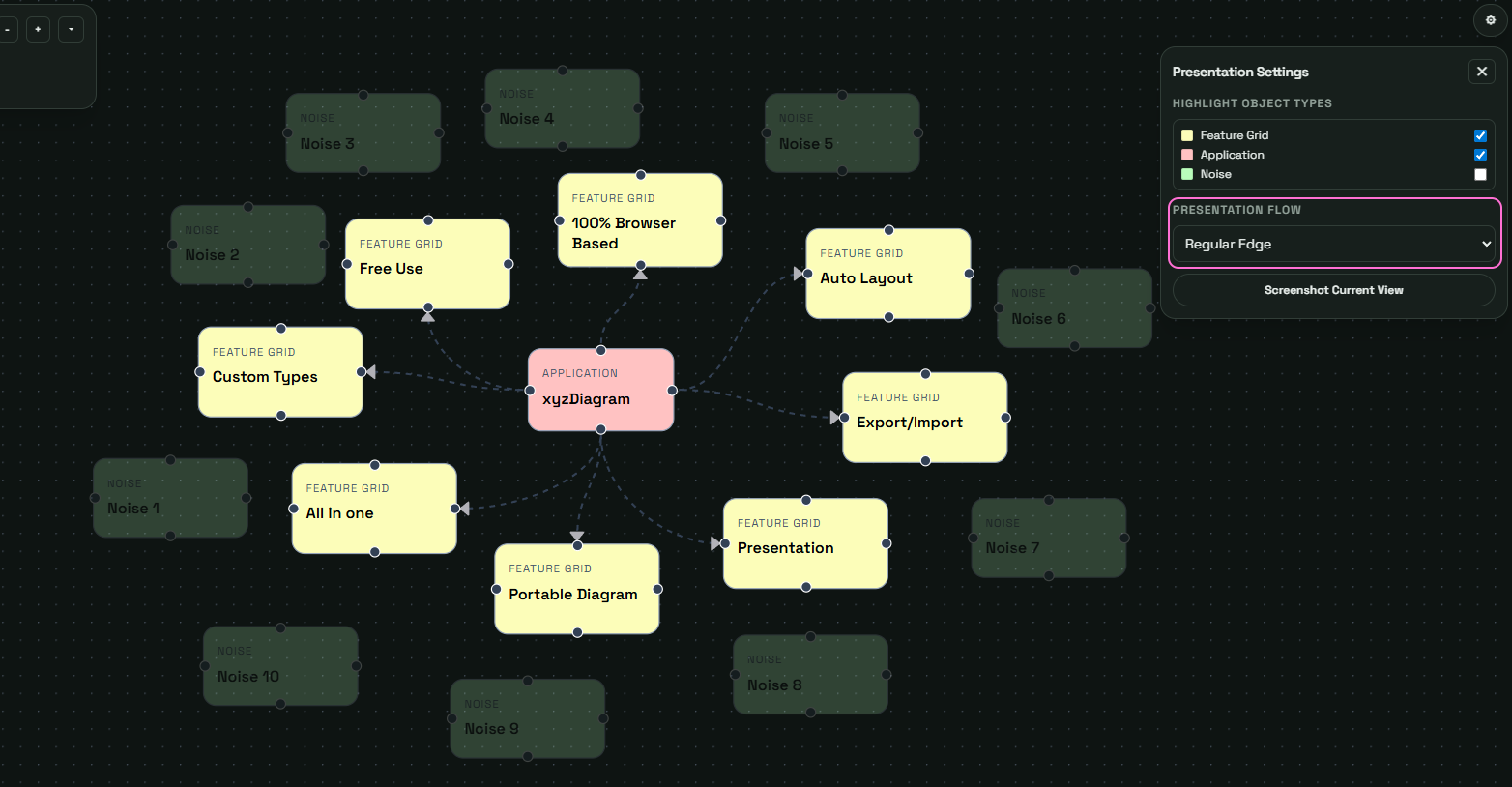
Presentation mode follows a specific edge type flow. By default regular edges are considered. To change the presentation flow, click the settings icon and adjust the Presentation Flow.
This allows presentations based on:
- Regular edges
- Dashed edges
- Animated edges